![logo_white_booster-Sep-13-2022-06-54-02-62-PM.png]](https://help.boostertheme.com/hs-fs/hubfs/logo_white_booster-Sep-13-2022-06-54-02-62-PM.png?height=36&name=logo_white_booster-Sep-13-2022-06-54-02-62-PM.png)
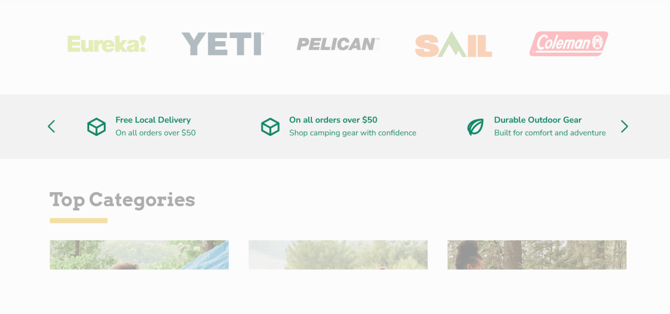
Use this section to highlight important information such as free shipping, secure checkout, easy returns, customer support, product guarantees, or brand benefits. It helps customers quickly understand your store’s key offers and builds trust while keeping the layout simple and easy to scan.
In this article:
How to use the icon + text section
To use the Icon + section, simply click on 'Add Section' and scroll down to 'Icon + text.'
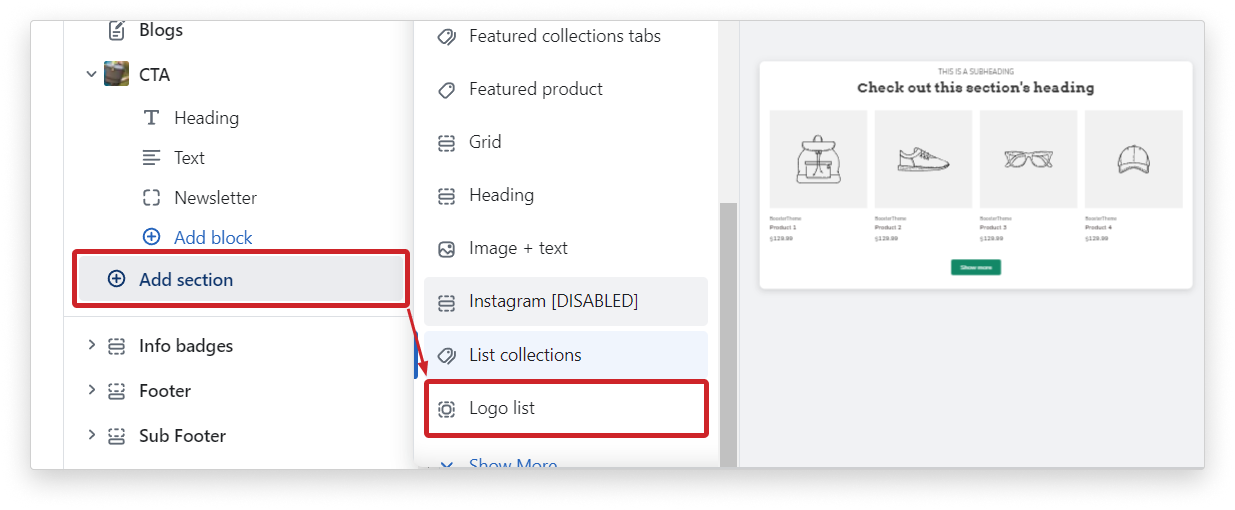
Add an Icon + text block
To use the Icon + section, simply click on 'Add Section' and scroll down to 'Icon + text.'
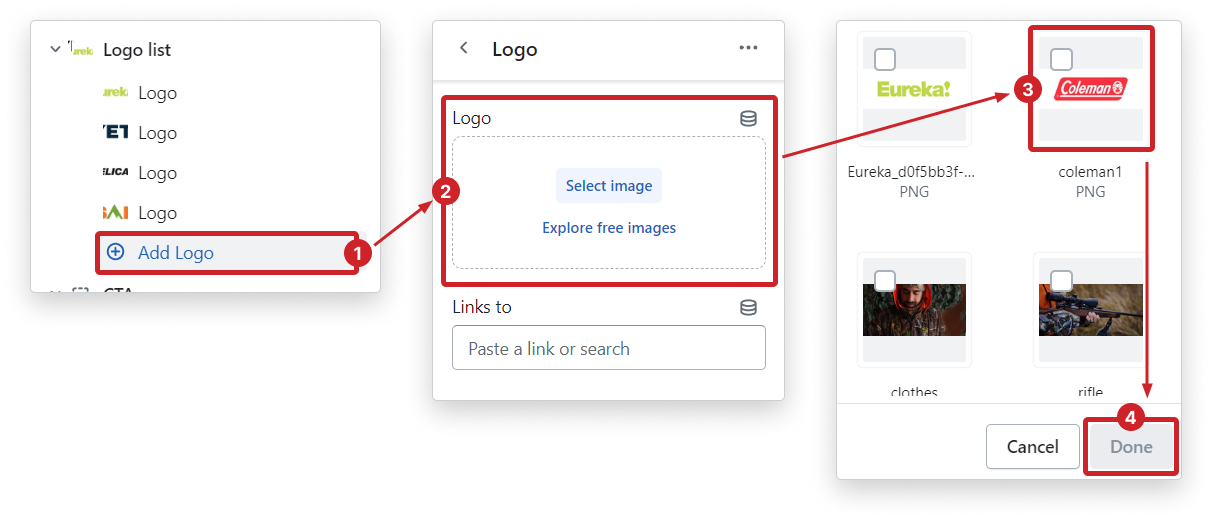
Add more logo blocks by selecting (+) Add Icon + text. You can add up to an unlimited number of blocks in this section.
Block settings
1. Customize the icon
Each Icon + Text block includes a Default icon setting. You can choose from the available icon options, such as a box icon for delivery or shipping-related messages.
You can also upload a Custom icon image if you want to use your own branded icon.
To add a custom icon, click Select under Custom icon image, upload or choose your image, then save your changes.
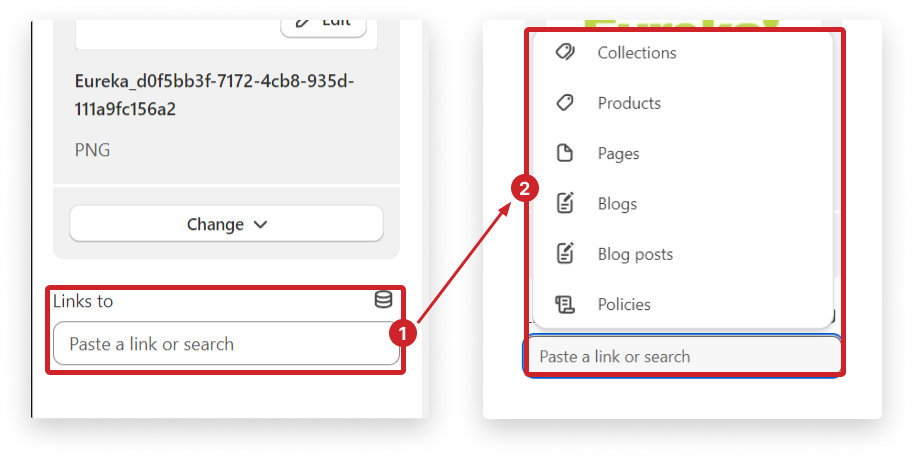
Add heading and text
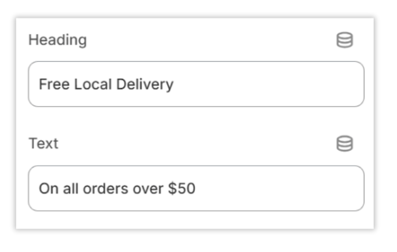
Use the Heading field to add the main message and use the Text field to add a short supporting description.
Keep the text short so the section remains clean and easy to read.
Remember to save your changes once you're satisfied with the modifications you've made to the logo list section. This will ensure that the changes are applied to your live store.